How to send IDS alerts to Trisul
There are two ways you can send IDS alerts into Trisul
- Use a Unix Socket and send Unified2 or Snort (Unified) format alerts to that socket
- Use the LUA Input Filter API
Suricata-EVE APP
The newly released Trisul APP Suricata EVE allows you to easily integrate Suricata alerts. You can give that a try if you prefer Suricata.Trisul can accept alerts in two formats from a named Unix socket
-
in Unified format : for use with
snort -A unsockoption - in Unified2 format : for use with barnyard2
-
Connecting Snort to Trisul using
All you have to do is start snort with the correct options. Trisul automatically picks up the alerts.unsock- Start Trisul Probe
Start Trisul via Admin → Start/Stop Tasks → Start Trisul Probe
- Start Snort in
unsockmode
Select the “How to start snort” to get the command line options as shown in the screenshot. You can then copy-paste that into a terminal.
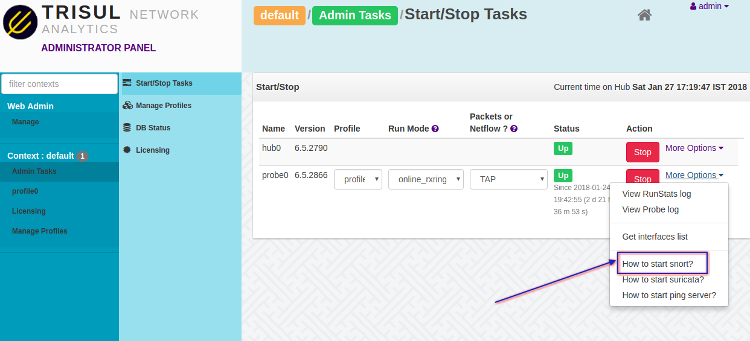
snort -A unsock -l /usr/local/var/lib/trisul-probe/domain0/probe0/context0/run -c /usr/local/etc/snort.conf -i eth0 -D
- Start Trisul Probe
Connecting Barnyard2 to Trisul
Barnyard2 is a software that takes the workload of translating to various output formats away from Snort. You can have it write to multiple outputs. Trisul can connect to barnyard2 using the alert_unixsock output format which is supported by barnyard2.
Change the socket name to barnyard2_alert
Barnyard2 uses the socket name barnyard2_alert ; edit the
IDSAlerts UnixSocket parameter to send the alerts to /tmp/barnyard2_alert
<IDSAlerts>
    <Enabled>True</Enabled>
    <UnixSocket>/tmp/barnyard2_alert</UnixSocket>
    <SnortVersion>2.9+</SnortVersion>
    <SnortConfigFile>/etc/snort/snort.conf</SnortConfigFile>
</IDSAlerts>
Start Trisul
- Start Trisul via Admin → Start/Stop Tasks → Start Trisul
Start barnyard2
All we need to do now is to run barnyard2 to read the unified2 files and send alerts into the Unix socket.
Edit barnyard2.conf and add the alert_unixsock output option.
#
# output alert_fast: stdout
output alert_unixsock
Run barnyard2 like the following
barnyard2 -c barnyard2.conf -l /tmp -o /tmp/byin/unified2.alert.*
- ensure the
-l /tmpwhich sends the alerts to the unixsocket/tmp/barnyard2_alert - assuming the unified2 files at in /tmp/byin
Suricata note
UPDATE: We now recommend using the new EVE alert format for Suricata. Please follow instructions in How to get Suricata EVE alerts into Trisul Network Analytics?
First edit the suricata.yaml file and check if Unified2 logging is enabled. You can disable all other logging.
 # alert output for use with Barnyard2
- unified2-alert:
    enabled: yes
    filename: unified2.alert

    # Limit in MB.
    limit: 500
Next start suricata and have it log to the /tmp/byin directory((byin – just a convention for barnyard input directory, You can use any name you want)). This will cause suricata to write files of the form unified2..log in the /tmp/byin directory.
suricata -c suricata.yaml -l /tmp/byin -i eth0
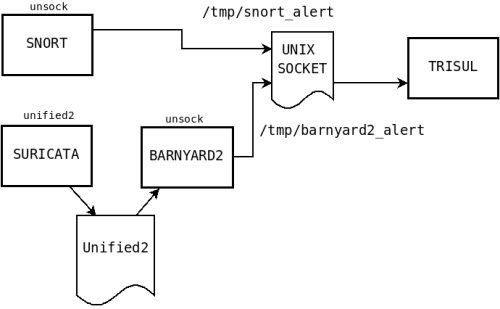
Diagram showing the pieces
A diagram that shows the relationship between the various pieces.
More things to do
-
How to change the path of the unix socket
The default install of every Trisul Probe listens on a unix socket at
/usr/local/var/lib/trisul-probe/domain0/probe0/context0/run/snort_alertYou can change this by editing the IDSAlert/UnixSocket parameter in the config file. -
How to read a PCAP file and generate alerts
A new tool called importpcap_ids uses snort to run the normal Analytics as well as IDS over PCAP dumps. The optional context= argument allows you to create multiple separate datasets in Trisul.
importpcap_ids pcap_dump_name context=newdataset1